Form Requests, Responses, Status, and Download

Rikin Diwan•CEO, Popform•
With this release, we've added the ability to send Requests to a specific recipient from within your Popform account.
Requests are currently limited to the publicly available templates that we launched last month.
How to Send Requests
Simply go to the Templates tab under Forms in the sidebar, hover over the Public Template you'd like to use, and click "Use Template". When sending a request with a public template simply open up the "Or send to someone else" menu.
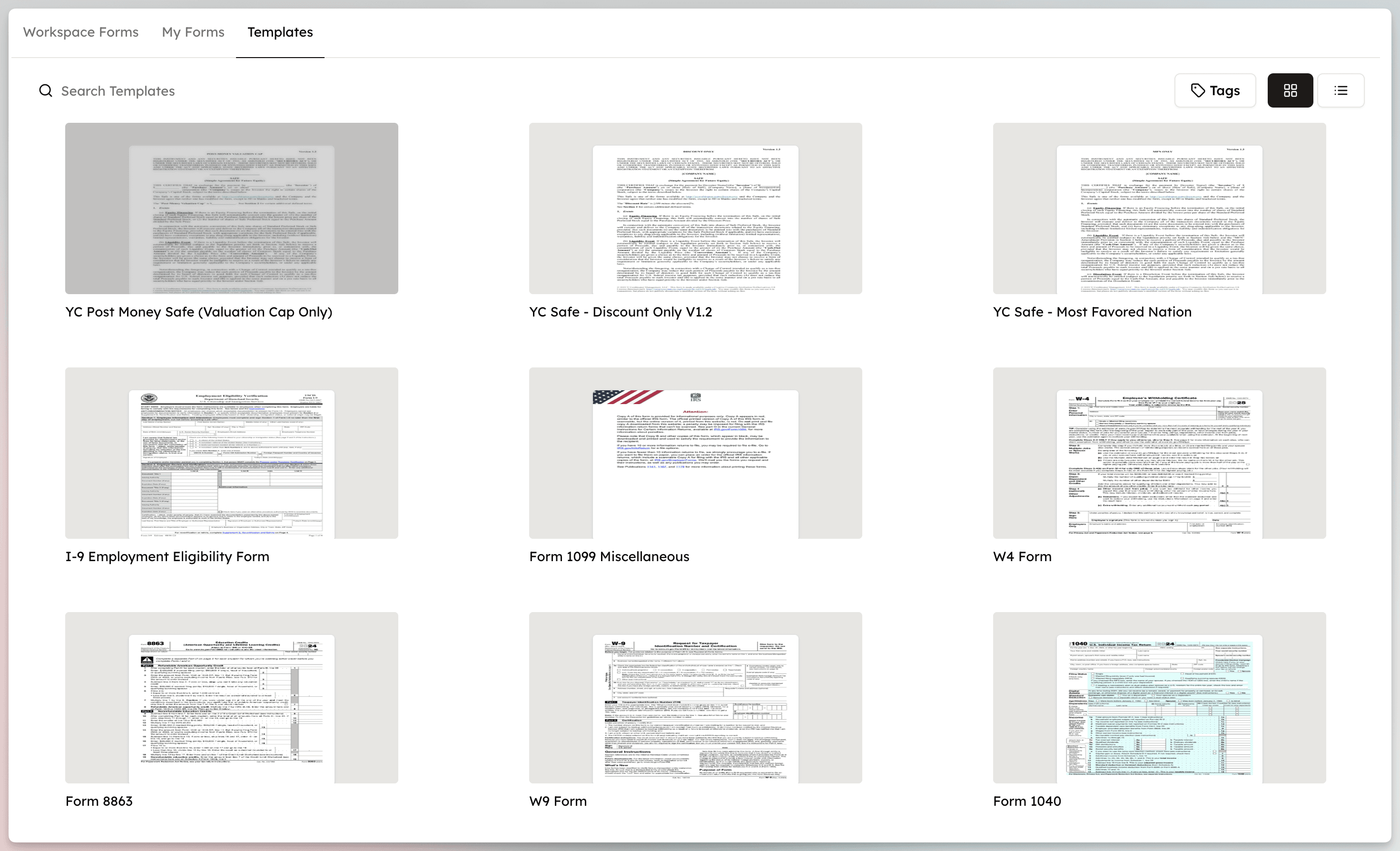 Sending a request
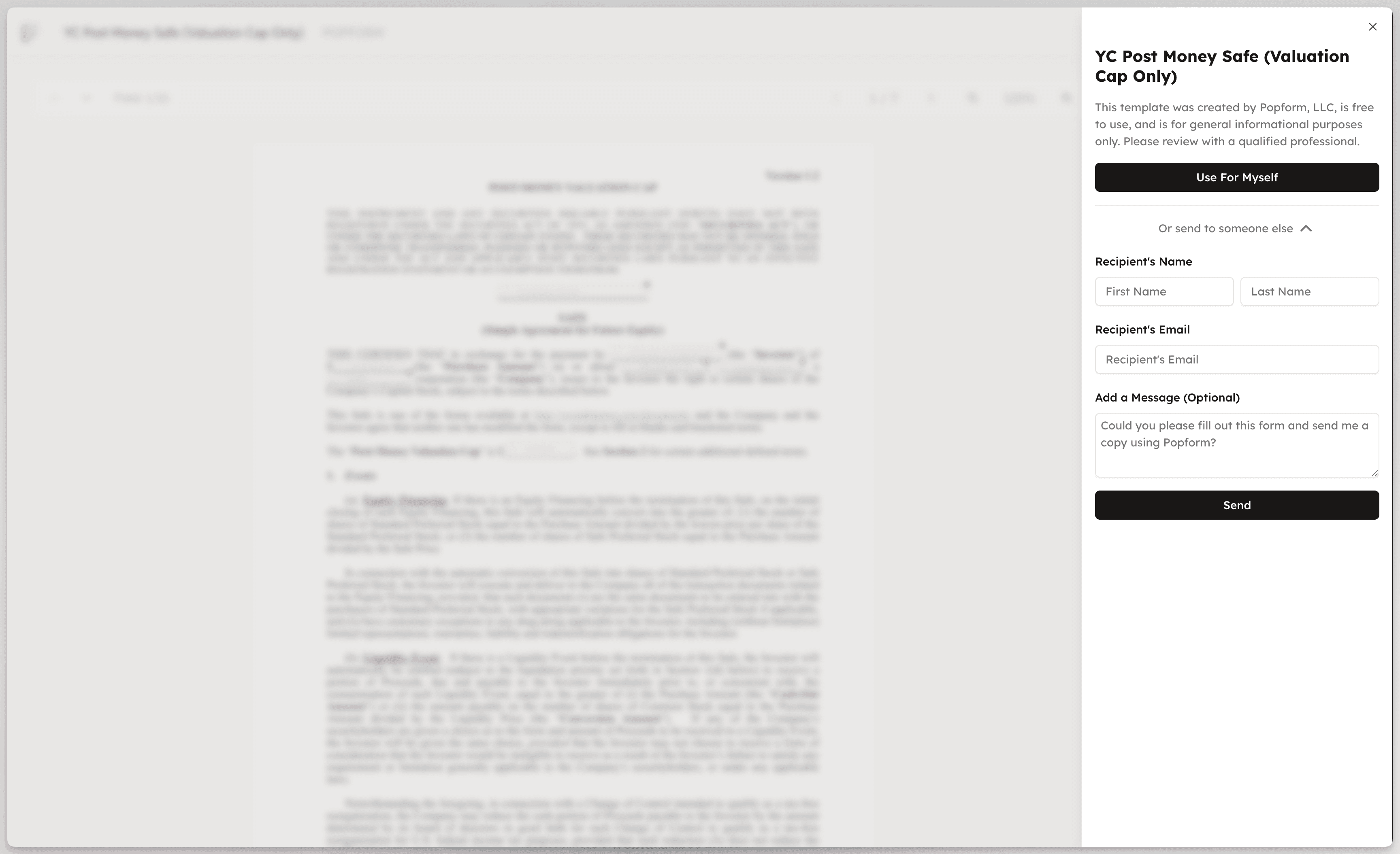 Send a form request
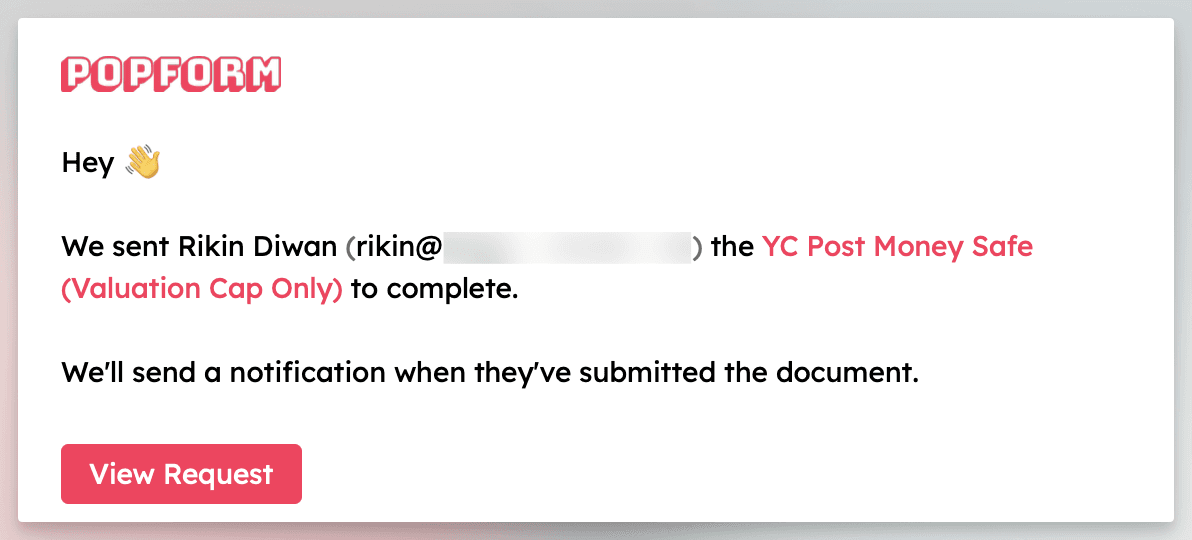
After sending the template to a recipient, head on back to the Requests section of your account and you'll see all the forms that have been sent out. Everyone you send forms to will receive email notifications when forms are sent and submitted.
Request Management
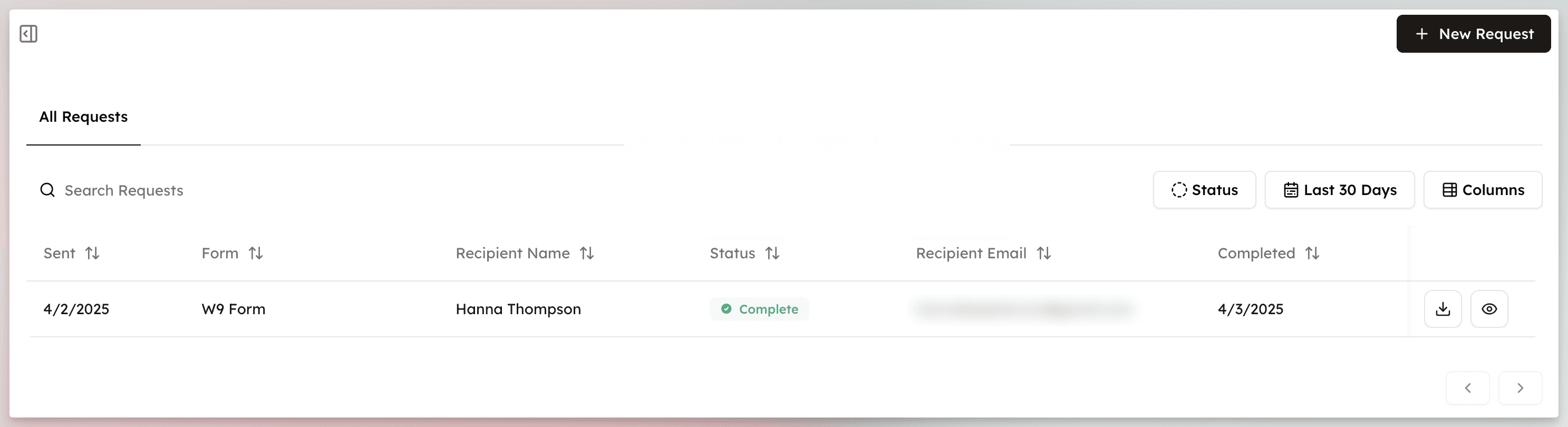
Back inside Popform, you can now track the status of the form:
- Sent -- the request has been delivered to the recipient
- Complete -- the recipient has finished and submitted the form
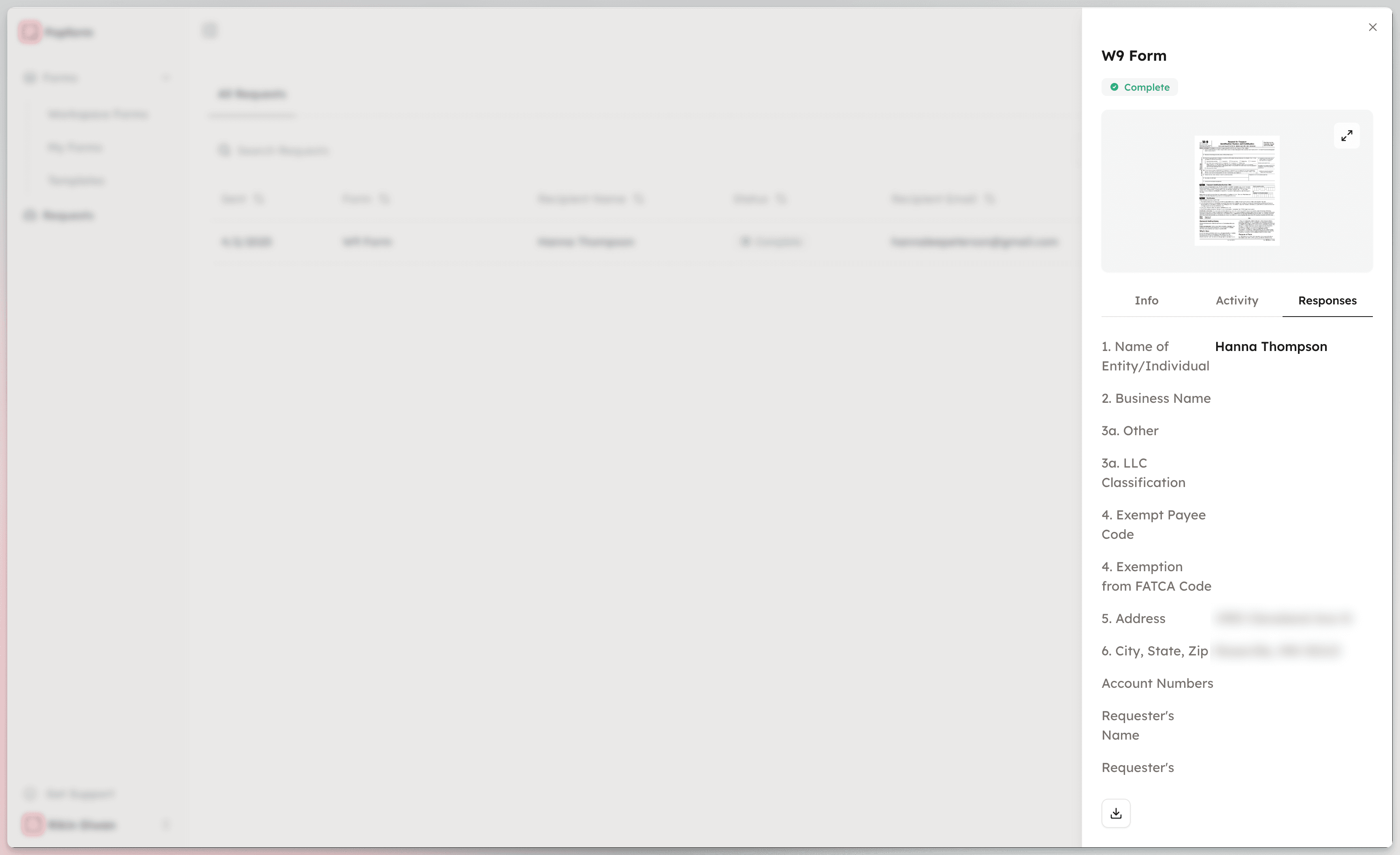
You can download the form, and also click on the eye icon to reveal details of each response.
 Request status tracking
Response Details
With Popform, we're not just saving flat forms and pages -- we're capturing, structuring, and organizing the data inside each form. Other tools simply treat a form as a document passing from one inbox to another. With Popform, we're unlocking the data inside the form itself.
Easily view the details of a request by clicking on the eye icon and then head over to the Responses tab. You'll see the unique values entered into each field, click to copy, and download all responses as a CSV file.
 Response details view
 Download responses
This data is the key to unlocking a lot more features to come and we're excited to provide a first look at what's to come with this release.